Where to Access SPOT
REMINDER: Instructors do not see any survey results until after grades have been submitted. SPOT (Student Perceptions of Teaching) survey responses are completely anonymous.
ICON
ICON
Left Side Bar

ICON Dashboard
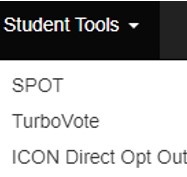
Student Tools Dropdown
MyUI
SPOT Tile

SPOT Website
spot.provost.uiowa.edu
Navigating the SPOT Website
When you enter SPOT, your screen will show the available surveys for that session.
Once logged in, instructors will have three Tab options; "Courses", "Reports", and "Trends".
COURSES TAB
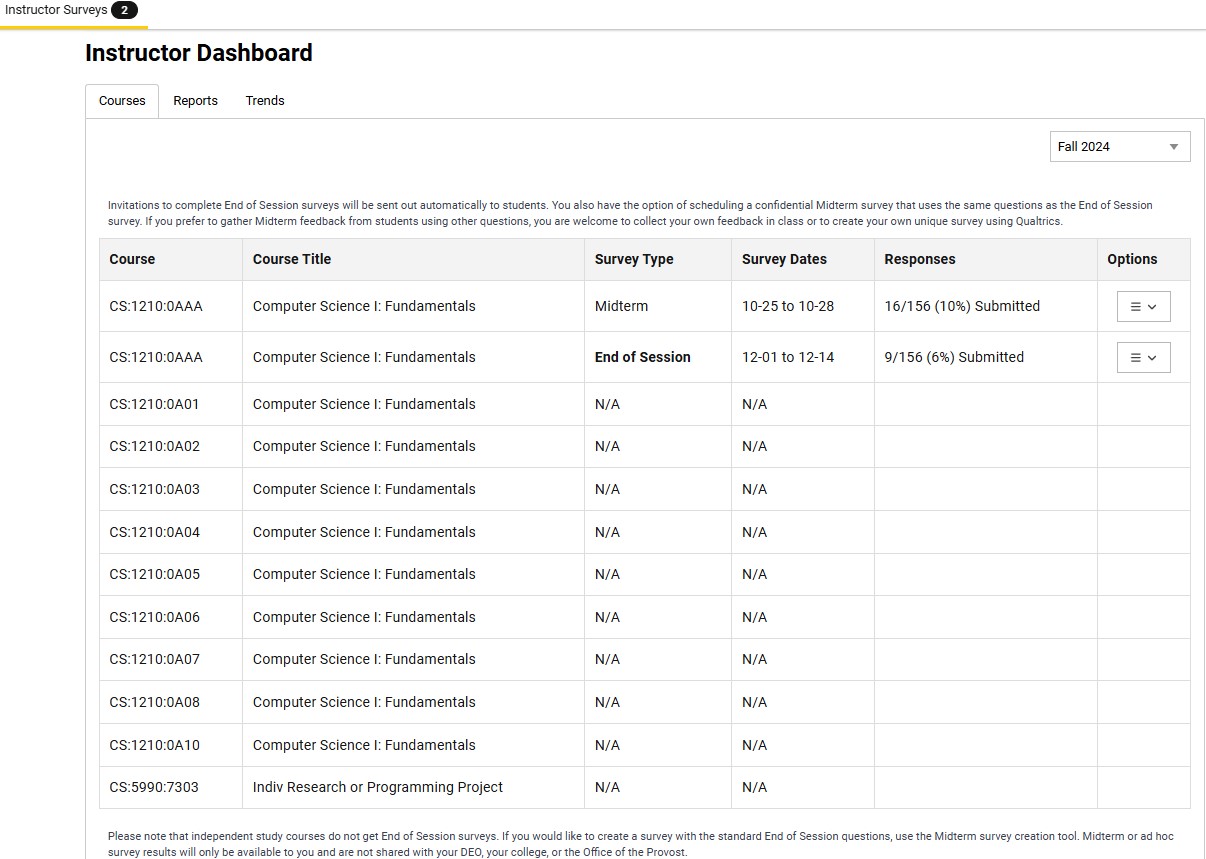
On the "Courses" tab, you will be taken to the current semester (a dropdown in the upper right allows you to change which semester is displayed).
On this tab, you will see the courses you teach (course and course title).
For each course you teach, you can click on the drop-down in the "Options" column to create a Midterm survey at any point in the session. Simply select the "Create Midterm Survey" button and you can choose when you want the survey to open and close. This will automatically show up in the student's survey list for that course. Instructors may create up to three midterm surveys within a course, but they cannot overlap with one another or the end-of-session survey.
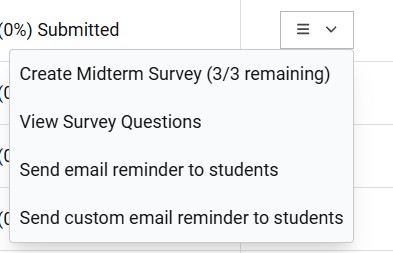
You can also use the "Options" column to send reminders to students for both Midterm and End of Session surveys, though for End of Session surveys, students will get three reminders automatically from the SPOT system.
The Midterm surveys will have the same questions as the End of Session surveys but are written in present tense.
REPORTS TAB
On this tab, you will be able to view your own end-of-session survey results, as well as any courses where you are a course supervisor. If you have many sections that you are a course supervisor for, it may take a bit to load.
-
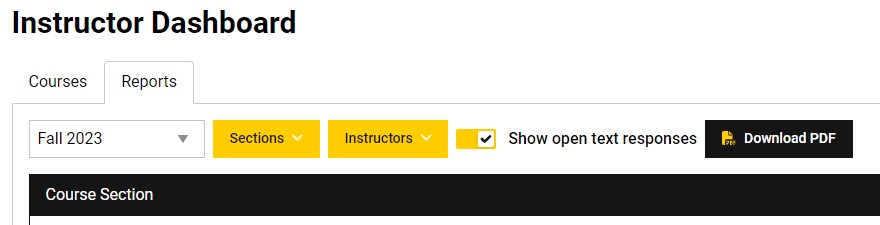
Under the Sections dropdown menu, you can select the sections you teach, as well as those you are the course supervisor for. If you want to view only one section, you can clear selection and then select only that section.
Under the Instructors drop down menu, you can select only yourself, or all of the instructors that you also all the courses you are a course supervisor for.
If you only want to see the quantitative results, simply uncheck the Show open text responses selection.
To download a PDF file so you can print your results, simply click on the Download PDF button. (If you have more than one section or instructor chosen, it will put all in one PDF file.
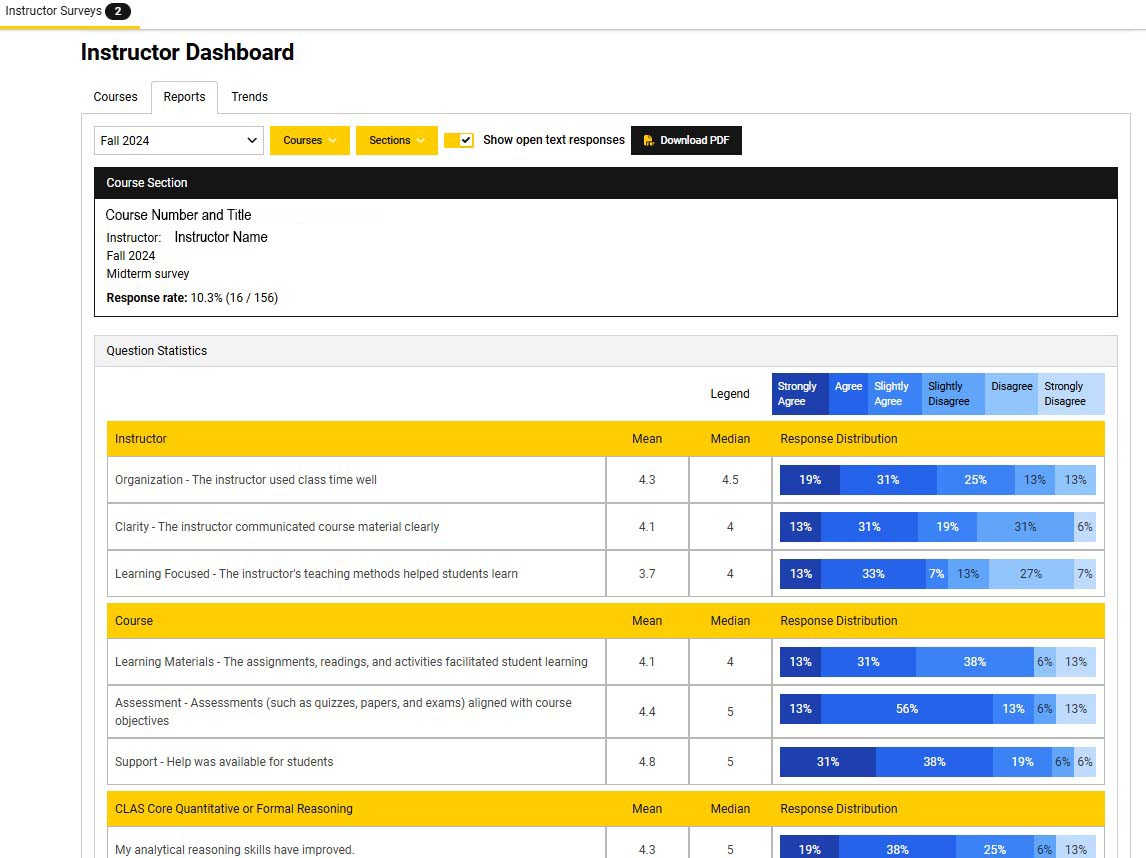
The "Reports" tab will default to the current or most recent session.
You can click on the gold "Sections" dropdown to select as many sections as you want to include in the report.
You can also toggle between showing open text responses or not.
Once you have the view you want, you can click on the "Download PDF" button at the top and print a PDF to save wherever you want.
TRENDS TAB
The "Trends" tab will display any historical results for the faculty member logged in. You cannot access other faculty member results from this tab.
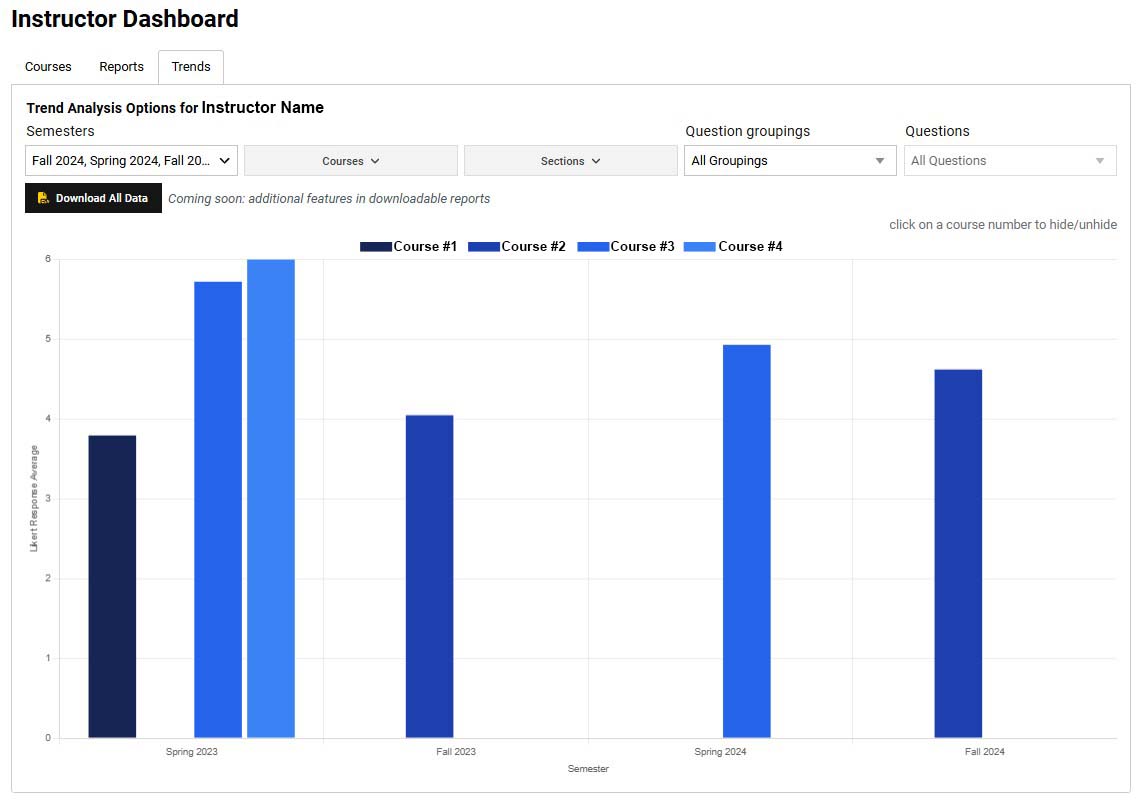
Select individual or multiple items from each drop-down menu until you display the information you want.
The small course numbers at the top of the chart may also be selected and deselected.
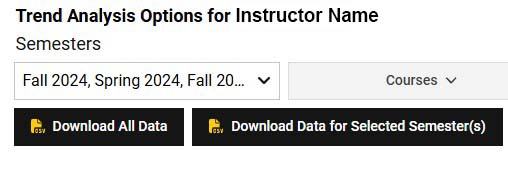
To download ALL of survey results, click on the Download All Data button. This will export a .csv file that can be used in Excel.
It will download ALL results, even if you only have specific semesters/courses selected.
If you only want to download what is showing on the screen, click on the Download Data for Selected Semester(s).